

In this article we are going to cover WordPress Files and Directory Structure.
If you’ve just started using WordPress or managing your own website, you might be wondering what’s inside the files and folders behind the scenes. Don’t worry in this beginner-friendly guide, we’ll explain the WordPress file and directory structure and why understanding it can be useful, even if you’re not a developer.
Why Learn About WordPress File Structure?
Most WordPress users manage their websites using the dashboard. But when something breaks or you need to customize your website, knowing where things are stored, like themes, plugins, or media files can help you solve problems faster and keep your site secure.
This article will help you with the following:
- In WordPress, which files and folders are important?
- Where does WordPress store the themes and plugins?
- In which files and folders should the changes be done or not done?
- Which files should be backed up?
Let’s take a look at the WordPress file and directory structure.
How to Access WordPress Files
The WordPress files and directories are stored or located on your web hosting server. To access the files, there are mainly two ways which are the following:
- FTP/SFTP : Use tools like FileZilla to connect to your website’s server.
- File Manager: Most hosting control panels (like cPanel) offer a file manager to browse and manage files easily.
The easiest way to access the files and folders of the WordPress is the File Manager which is an built in app in most of the WordPress hosting control panel.

Once inside public_html(or your website root folder), you’ll see folders like:

In public_html folder, all the core files and folders are stored which are responsible for running your WordPress site.
Except the .htaccess and wp-config.php files, the user is not advised to make any kind of changes to the other files. The following is the list of the files which you will see in the public_html folder (or root folder):
- .well-known
- wp-admin
- wp-content
- wp-includes
- index.php
- license.txt
- readme.html
- wp-activate.php
- wp-blog-header.php
- wp-comments-post.php
- wp-config-sample.php
- wp-config.php
- wp-cron.php
- wp-links-opml.php
- wp-load.php
- wp-login.php
- wp-mail.php
- wp-settings.php
- wp-signup.php
- wp-trackback.php
- xmlrpc.php
In the above list the .htaccess and wp-config.php files are not listed as they are created after the successful installation of the WordPress.
Configuration files of the WordPress
The WordPress contains some configuration files which play the major role related to the settings of the WordPress site.
- .htaccess– Used for permalink structure and security settings. This is a hidden file, and not all hosting platforms display it by default.
- wp-config.php– Contains database connection info and site-wide settings.
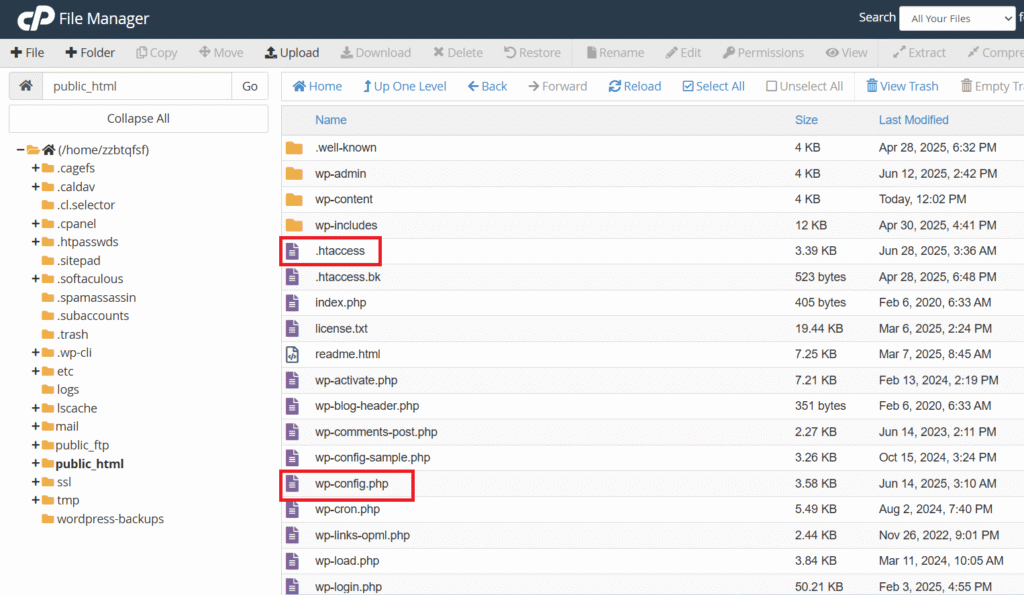
Sometimes there may be a need to make the changes to the .htaccess and wp-config.php files, so before making the changes to these the user should be careful as if the small changes are also done it could affect the working of the site. It is suggested to the user that before making any changes to these files always take the backup.
If you are not able to see the .htaccess and wp-config.php then don’t worry you just need to make small change in your settings, which is at the top left corner.

Click the settings icon

Check the Show Hidden Files(dotfiles) box and save the changes

Once the changes are saved, you will start seeing the files.
wp-content Folder
The wp-content folder is the folder where the all the customizations and assets are stored. It holds all the themes, plugins and uploads related to the site.

The wp-content folder holds the following main folders where the themes, plugins and media is stored:
- themes: Holds all your installed WordPress themes. You can edit them, but it’s recommended to use child themes for customization to avoid losing changes during updates.
- plugins: Contains all installed plugins. Avoid direct editing unless you’re writing your own plugin.
- uploads: All your media files (images, videos, PDFs) are stored here. Organized by year/month by default (e.g.,
/uploads/2025/04/).
For every website the content of the wp-content may be different, but it usually holds the above folders mainly, the below are the other some folders which are included inside the wp-content folder.
- litespeed: This folder is automatically created if your hosting uses LiteSpeed Web Server. It may store cache files or temporary assets to speed up your site. There is no need to modify this manually.
- upgrade: This folder is used temporarily during WordPress updates, such as core updates. It can sometimes be safely deleted after an update is complete, but WordPress usually clears it on its own.
- upgrade-temp-backup: This is also created during upgrades or backups by WordPress or a plugin. It may include temporarily saved data while installing updates.
Conclusion:
Understanding the WordPress file structure through cPanel gives you greater control over your website. With clear knowledge of folders like wp-content, and how themes, plugins, and uploads are organized, you can manage your site more efficiently. Whether it’s for troubleshooting, backing up data, or customizing features, this setup is perfect for users looking to maintain a stable and flexible WordPress environment on any hosting platform.
Related Articles:
How to Select Color Scheme for WordPress site
Reference: